
Include Screenshots

Configuration Setup
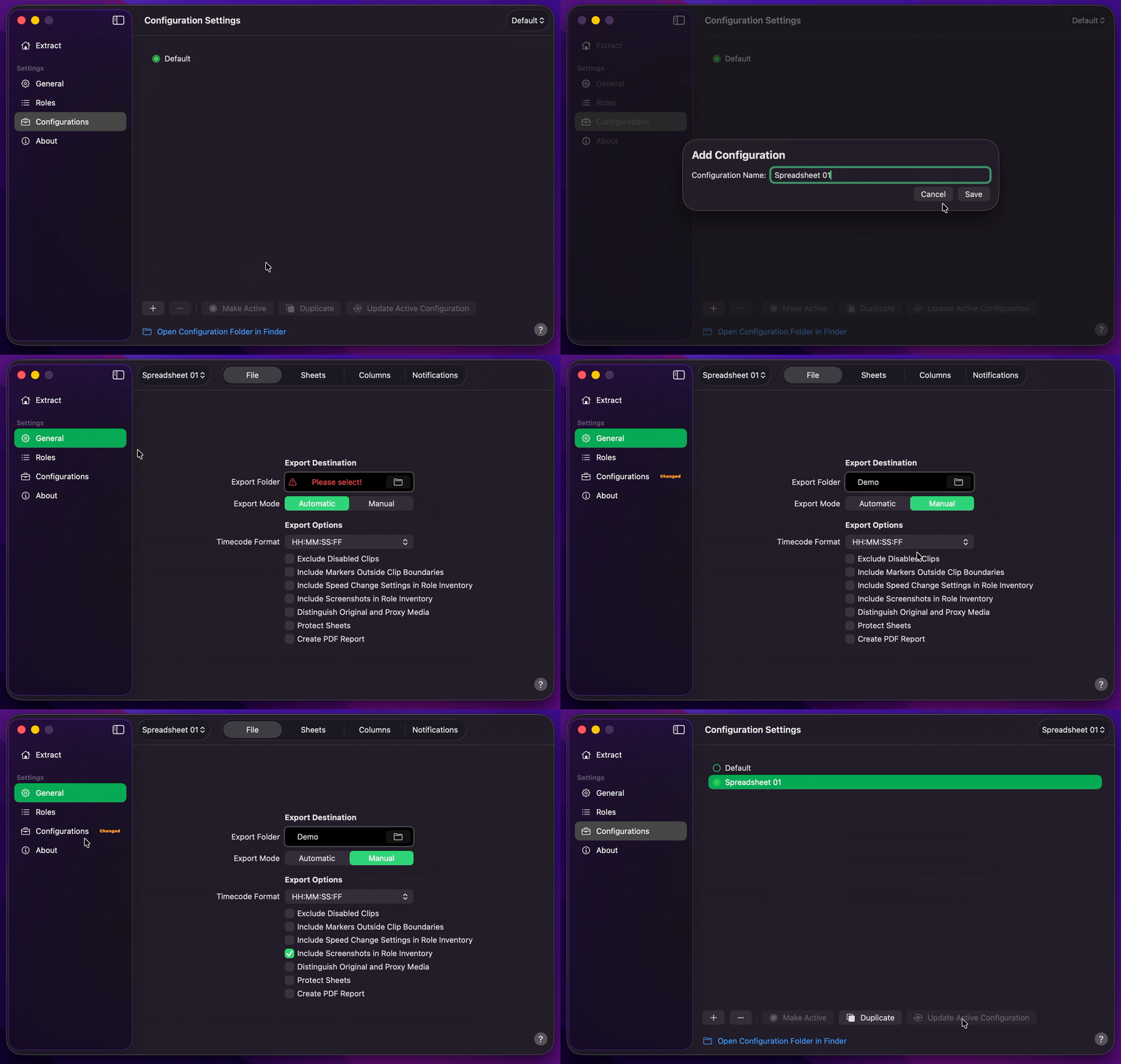
- Create Your Configuration.
- Select your desired Export Destination by clicking on the Folder Icon.
- Select
AutomaticorManualExport Mode.AutomaticDefault begins the export as soon as a project is received. - Enable Include Screenshots in Role Inventory under Export Options.
- Optionally, under Sheets, enable the report worksheets you need — or turn on
Full Reportto include every optional sheet. - Optionally, under Columns, enable or disable the columns that appear on role inventory sheets.
- Return to Configurations to Update Active Configuration.
Info
By
Default
, screenshots are omitted. Include Screenshots in Role Inventory adds a Screenshot column in the Excel workbook (.xlsx) and saves full-frame PNGs in a Screenshots folder beside it. The PDF does not include screenshots. The Screenshot column is not listed under Columns.
Optional Sheet Selection
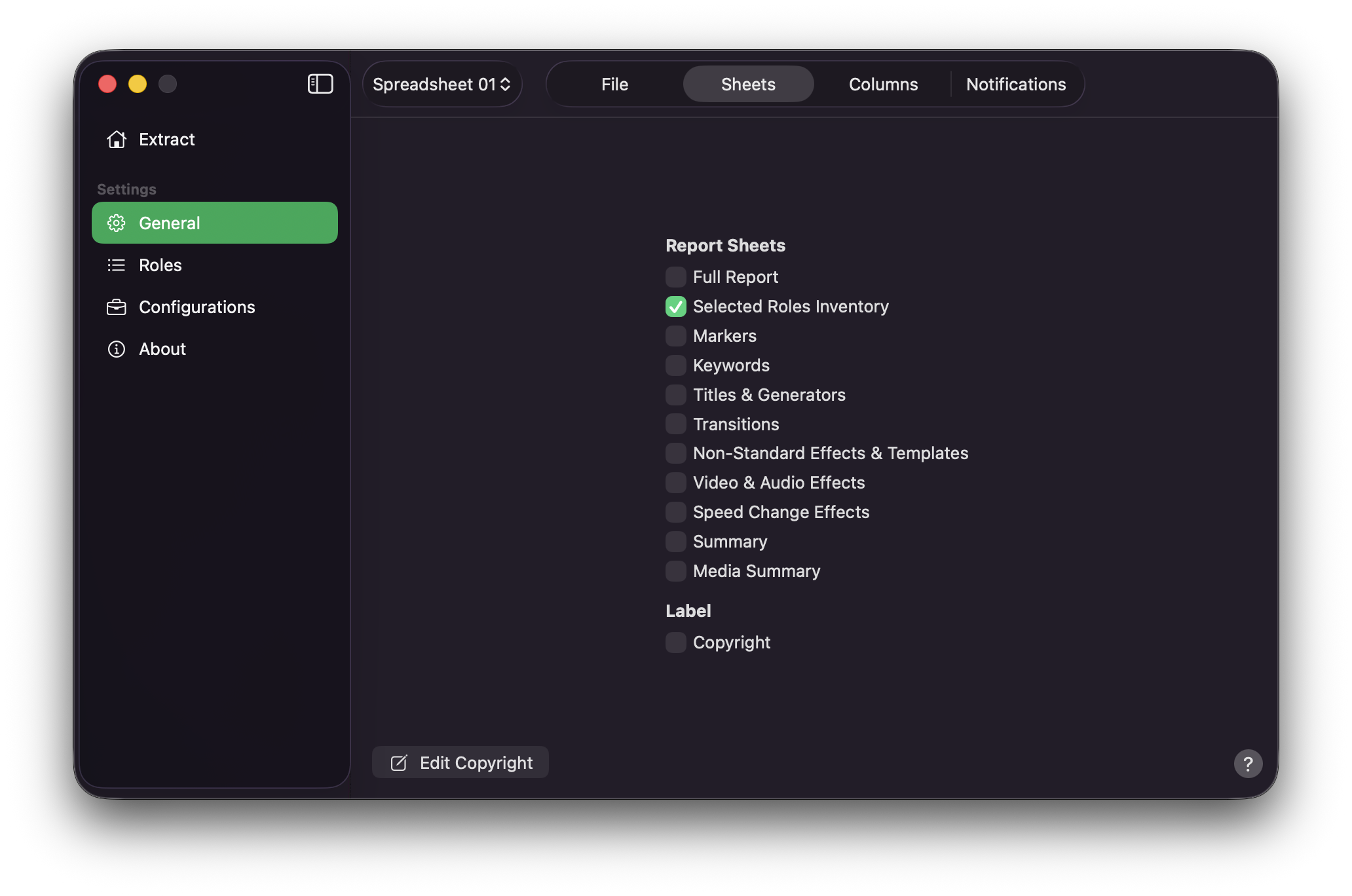
On the Sheets tab, choose which worksheets appear in the Excel workbook (.xlsx):
- Turn on
Full Reportto enable every optional sheet at once, or - Enable sheets individually — for example
Markers,Keywords,Titles & Generators,Summary, orMedia Summary
A summary of enabled sheets is also shown in the status bar on Extract.
Optional Column Selection
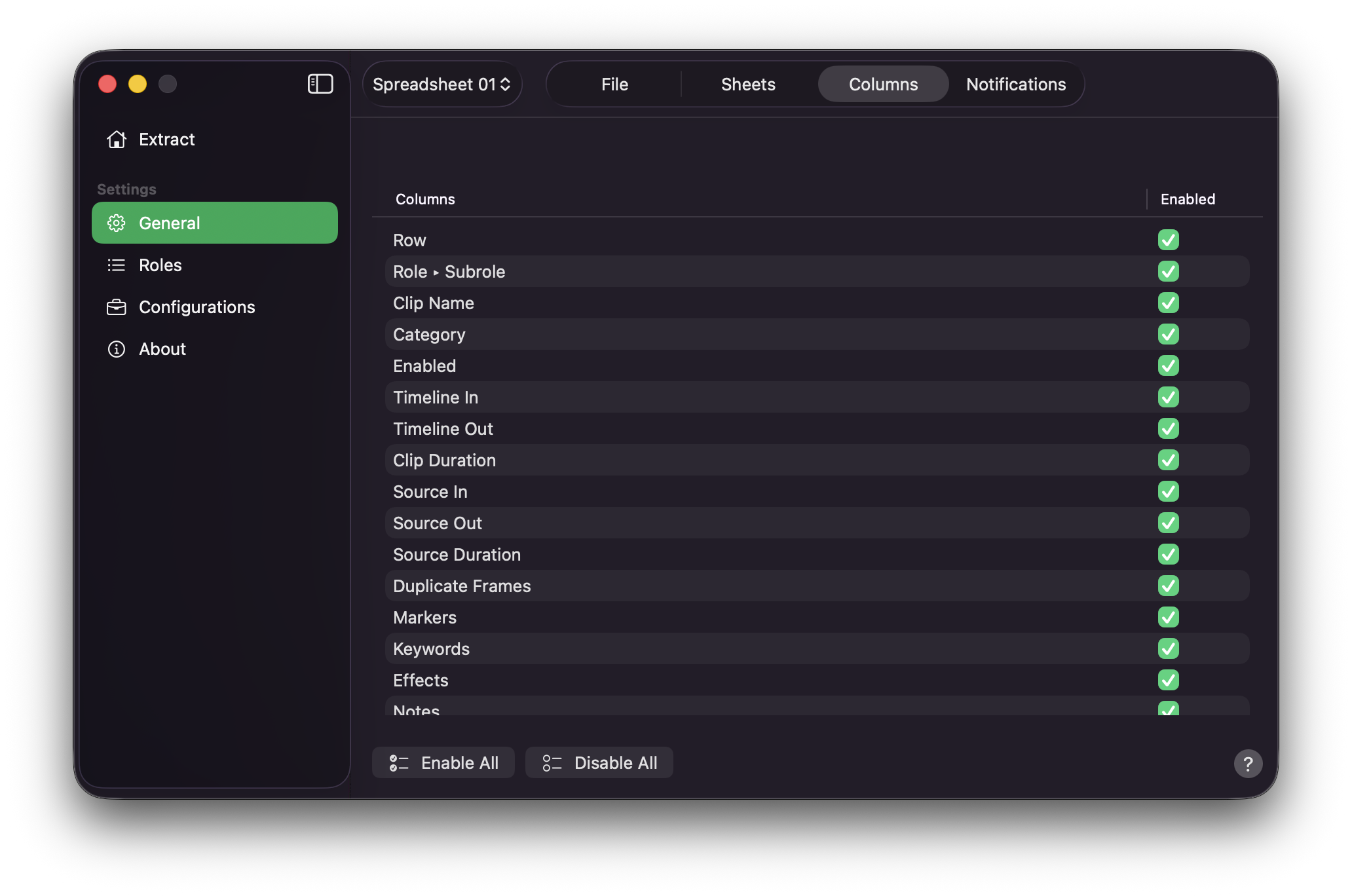
On the Columns tab, use the table to turn individual columns on or off. Disabled columns are omitted from the export. Press Enable All or Disable All when you need a quick reset.
The Screenshot column is controlled under Export Options, not on this Columns tab.
Final Cut Pro to Excel Spreadsheet
- Drag and drop your
.fcpxmlor.fcpxmldfile onto Extract, or drag a timeline / compound clip from Final Cut Pro. - Production Data will begin the export.
- If
Choose Media Folderappears, select the original media folder, the proxy folder, a Final Cut Pro library (.fcpbundle), or an enclosing folder, then pressGrant Access. Cancelling this first prompt cancels that export. - The same
Choose Media Folderpanel may appear again for unread proxy or transcoded media — even after original media was granted. Grant the proxy folder the same way. Original and proxy media often live in different folders. - If remaining files still cannot be read, choose
Choose Another Folder,Continue Without Remaining Screenshots, orCancel Export. - Production Data will create an Excel workbook (
.xlsx) in your Export Destination, withSource Inframe grabs in the Role InventoryScreenshotcolumn and full-frame PNGs in aScreenshotsfolder beside the workbook.
Info
Titles, generators, and audio-only rows leave the Screenshot cell blank and are left out of the Screenshots folder. If media cannot be read after you grant access — or you continue without remaining screenshots — leftover cells stay blank and those rows are left out of the folder. The rest of the workbook still exports. See Include Screenshots in Role Inventory.