
Creating Excel Spreadsheet

Configuration Setup
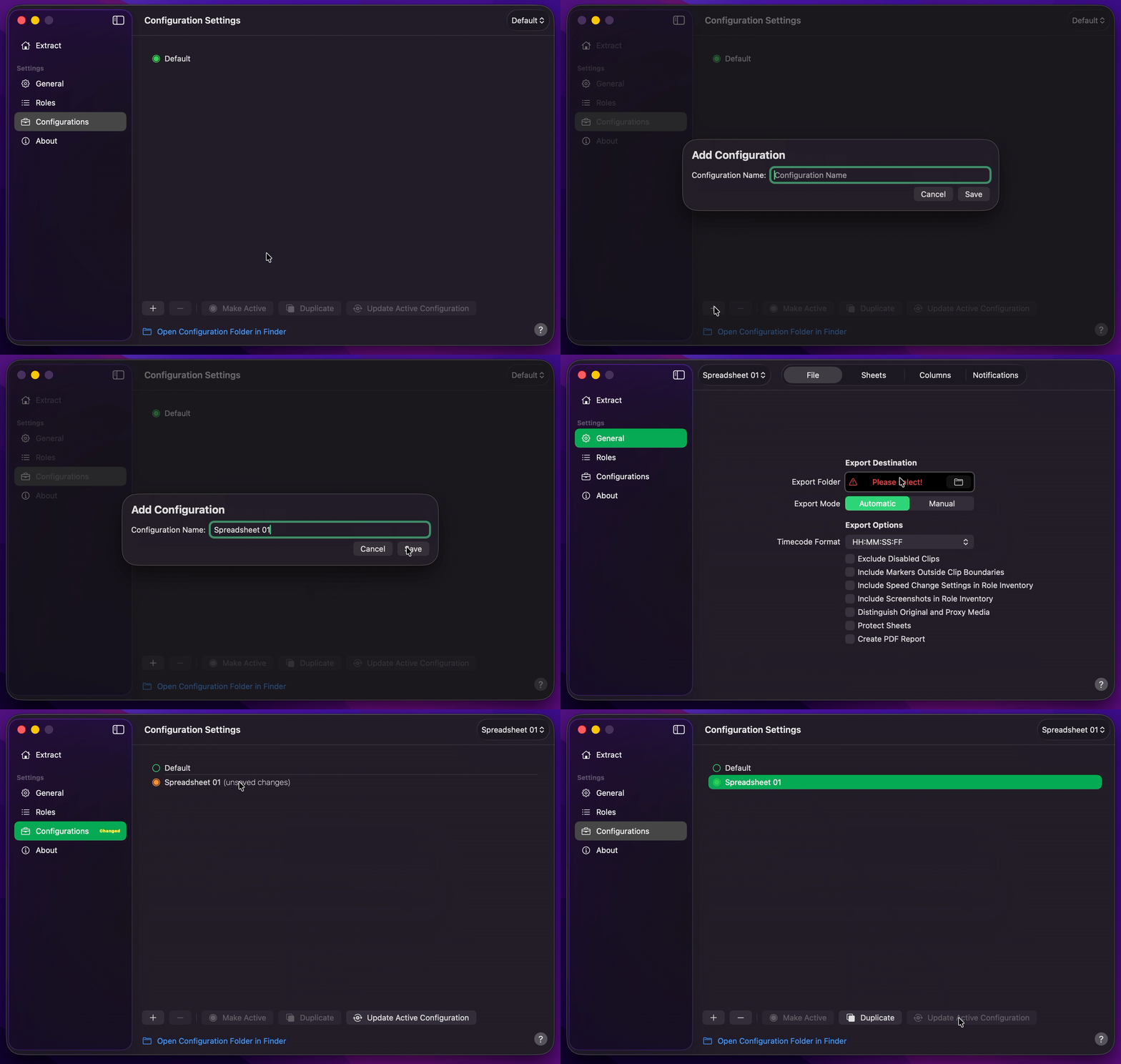
- Create Your Configuration.
- Select your desired Export Destination by clicking on the Folder Icon.
- Select
AutomaticorManualExport Mode.AutomaticDefault begins the export as soon as a project is received. - Optionally, under Sheets, enable the report worksheets you need — or turn on
Full Reportto include every optional sheet. - Optionally, under Columns, enable or disable the columns that appear on role inventory sheets.
- Optionally, under Export Options, enable
Include Speed Change Settings in Role InventoryorInclude Screenshots in Role Inventorywhen you need those Role Inventory extras (screenshots are saved with the Excel workbook, not the PDF). - Return to Configurations to Update Active Configuration.
Info
By
Default
, Production Data includes Selected Roles Inventory only. Sheet and column choices are optional — leave them as-is for a lean roles workbook, or tailor them for your deliverable before you save the Configuration.
Optional Sheet Selection
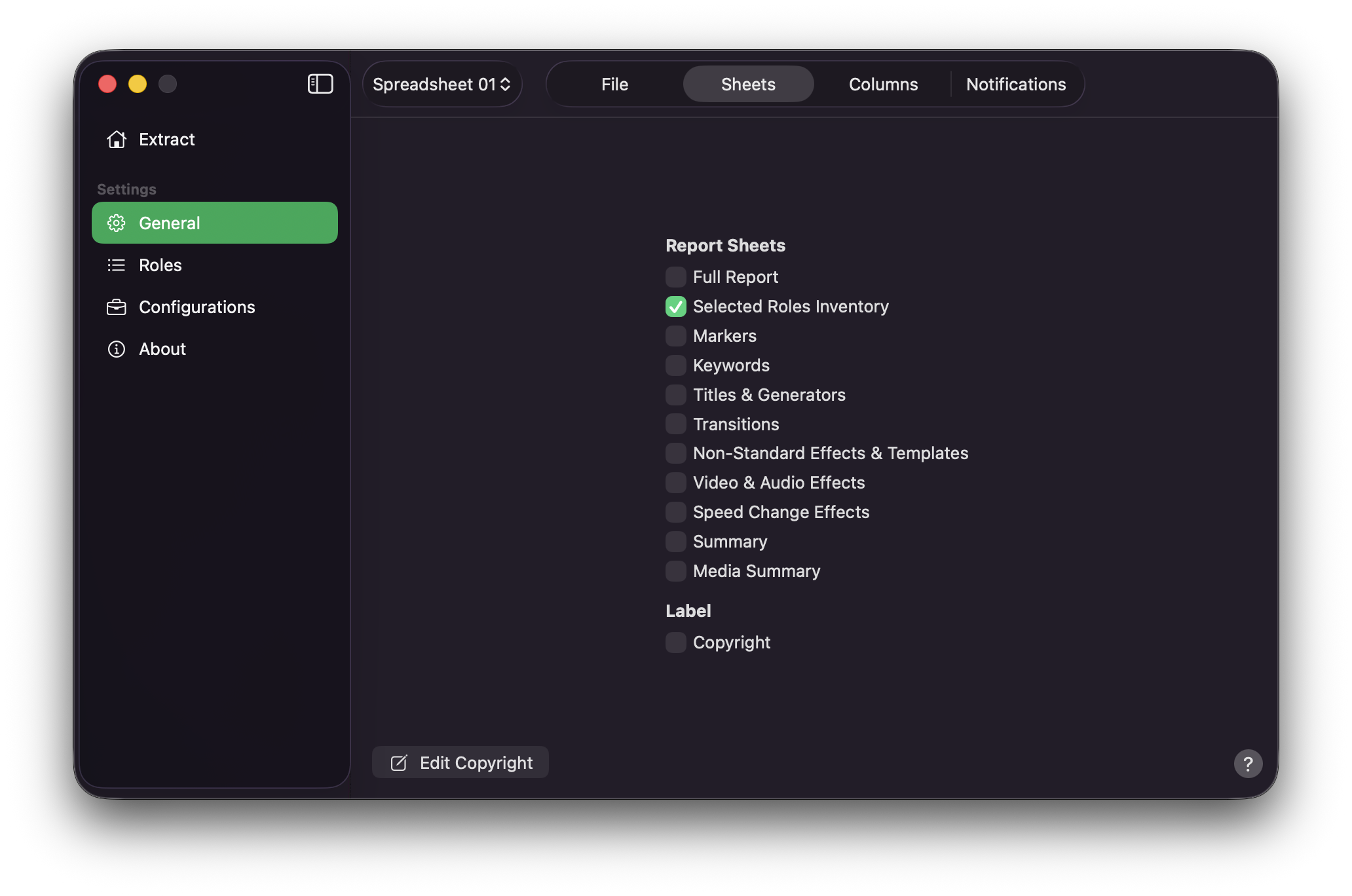
On the Sheets tab, choose which worksheets appear in the Excel workbook (.xlsx):
- Turn on
Full Reportto enable every optional sheet at once, or - Enable sheets individually — for example
Markers,Keywords,Titles & Generators,Summary, orMedia Summary
A summary of enabled sheets is also shown in the status bar on Extract.
Optional Column Selection
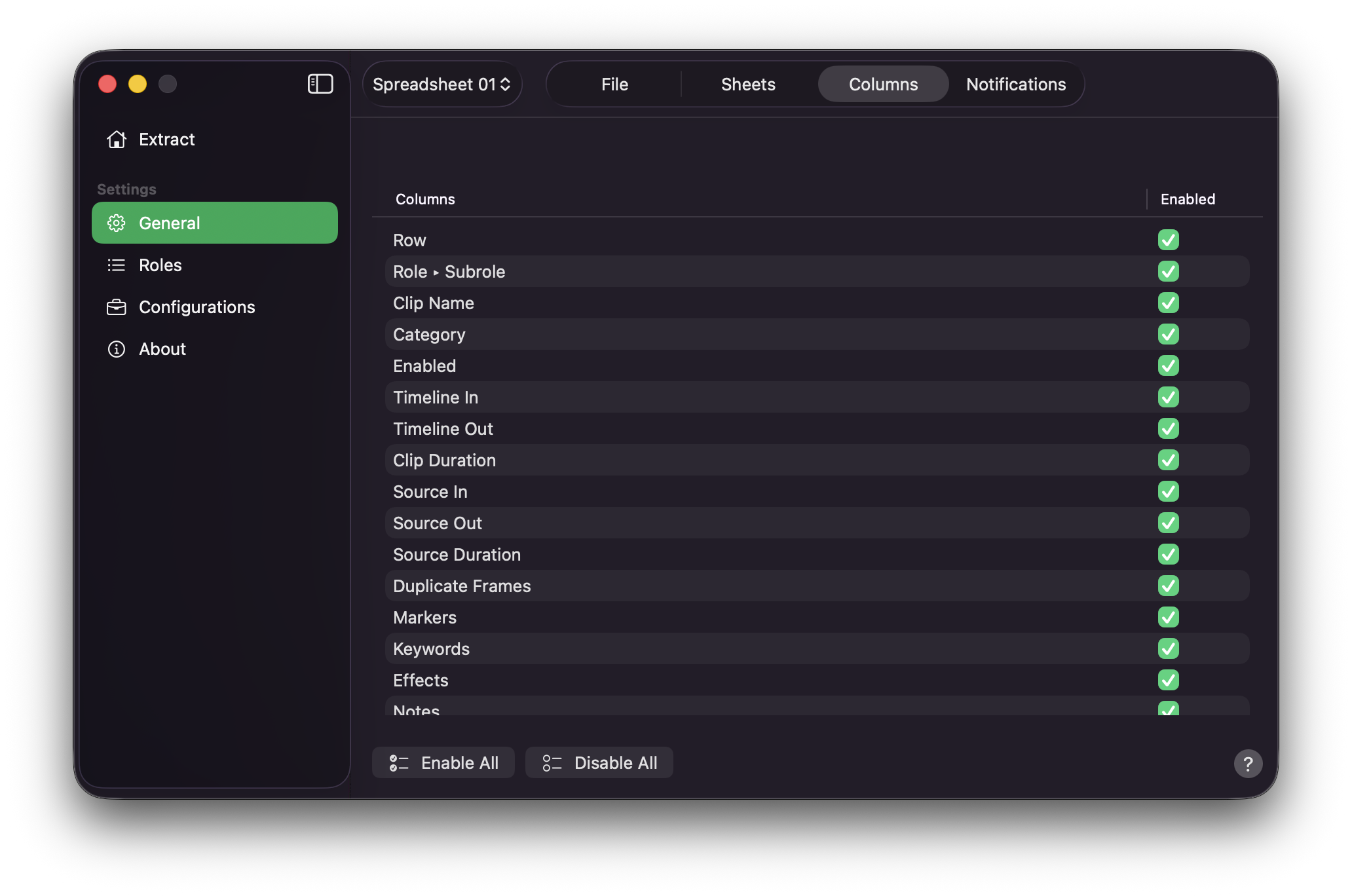
On the Columns tab, use the table to turn individual columns on or off. Disabled columns are omitted from the export. Press Enable All or Disable All when you need a quick reset.
Final Cut Pro to Excel Spreadsheet
- Drag and drop your
.fcpxmlor.fcpxmldfile onto Extract, or drag a timeline / compound clip from Final Cut Pro. - Production Data will begin the export.
- Production Data will create an Excel workbook (
.xlsx) in your Export Destination.