
Roles

Production Data's Roles panel lets you review and include or exclude the video and audio roles found in your Final Cut Pro project. Role settings in the active Configuration control which roles appear in the exported report.
Drop an .fcpxml or .fcpxmld file onto Roles, or drag a timeline / compound clip from Final Cut Pro. Tables appear only after a project has been loaded. While that runs, the footer shows a green progress ring and Loading roles… — on large or complex timelines this can take a long time.
Info
That first pass only builds the roles list. Starting the export then walks the project again to write Excel, and PDF if enabled. See Production Data appears hung while loading FCPXML / Roles take a long time.
Video and Audio Tabs
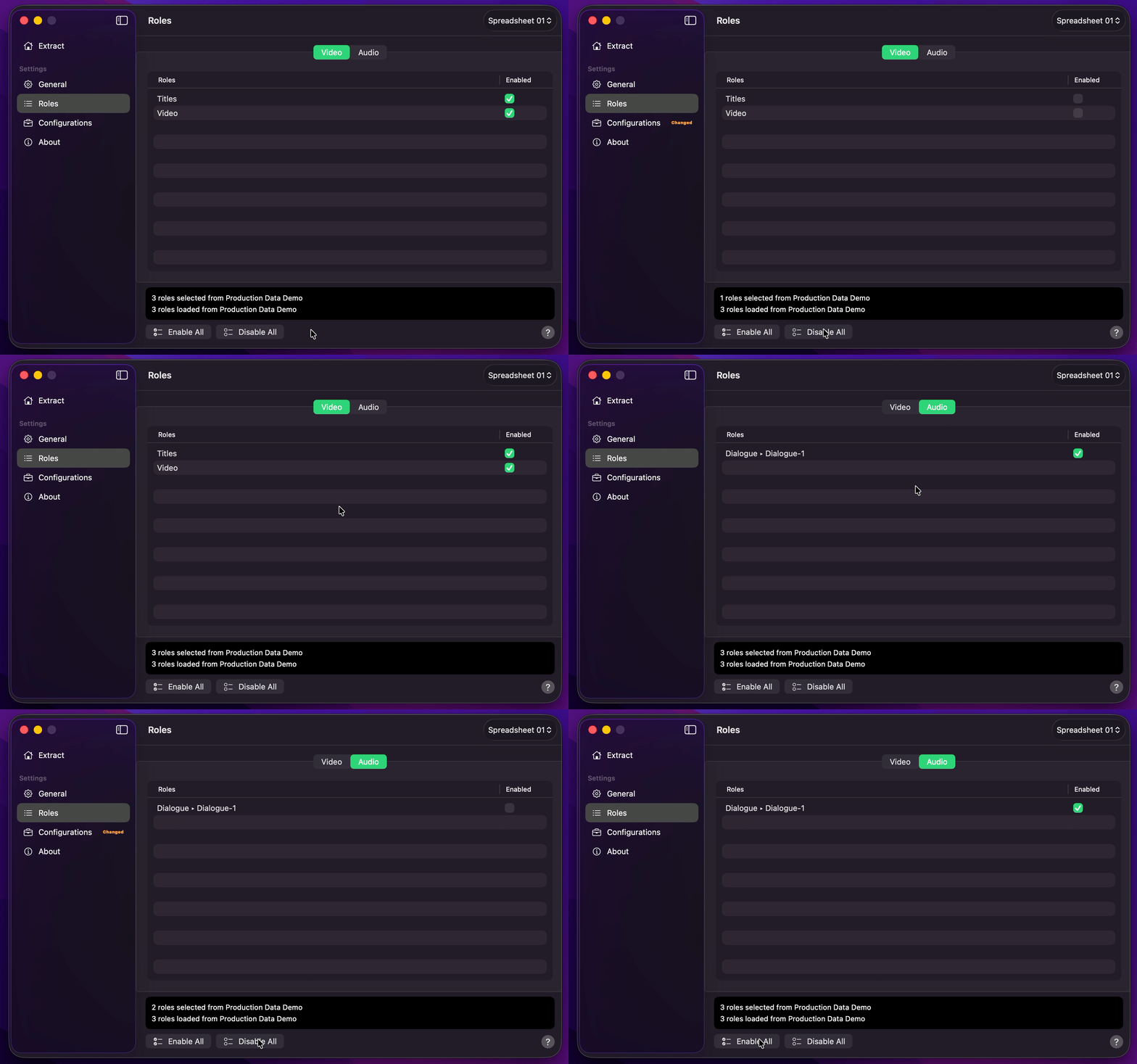
- Video — lists video roles from the loaded project.
- Audio — lists audio roles from the loaded project.
Use Enable All or Disable All for the selected tab. Disabled roles are omitted only from role-bearing sheets in the same export:
- Selected Roles Inventory (and each per-role inventory tab)
- Markers
- Keywords
- Titles & Generators
- Video & Audio Effects
- Speed Change Effects
- Summary
Role exclusion does not filter Transitions, Non-Standard Effects & Templates, or Media Summary.
Info
Disable a role when you want matching Role ▸ Subrole rows dropped from those role-bearing sheets — not from Role Inventory alone. Empty Role ▸ Subrole fields are left as they are. Speed Change Effects fills Role ▸ Subrole the same way as Video & Audio Effects (typically Video, or Dialogue for audio-only hosts), so disabled roles apply there too.
If a role name is very long, Excel may shorten the per-role sheet tab. Disabling that role in Production Data still removes the matching rows from Selected Roles Inventory and the other role-bearing sheets listed above, including Video & Audio Effects.
Automatic and Manual Mode
Behaviour depends on Export Mode:
- Automatic Default — dropping a project on Roles switches to Extract and starts the export.
- Manual — Roles stays open so you can review roles first. Switch to Extract and press
Start Exportwhen you are ready.
Info
To update the roles list, load a project again.