# Creating PDF Report

## Configuration Setup
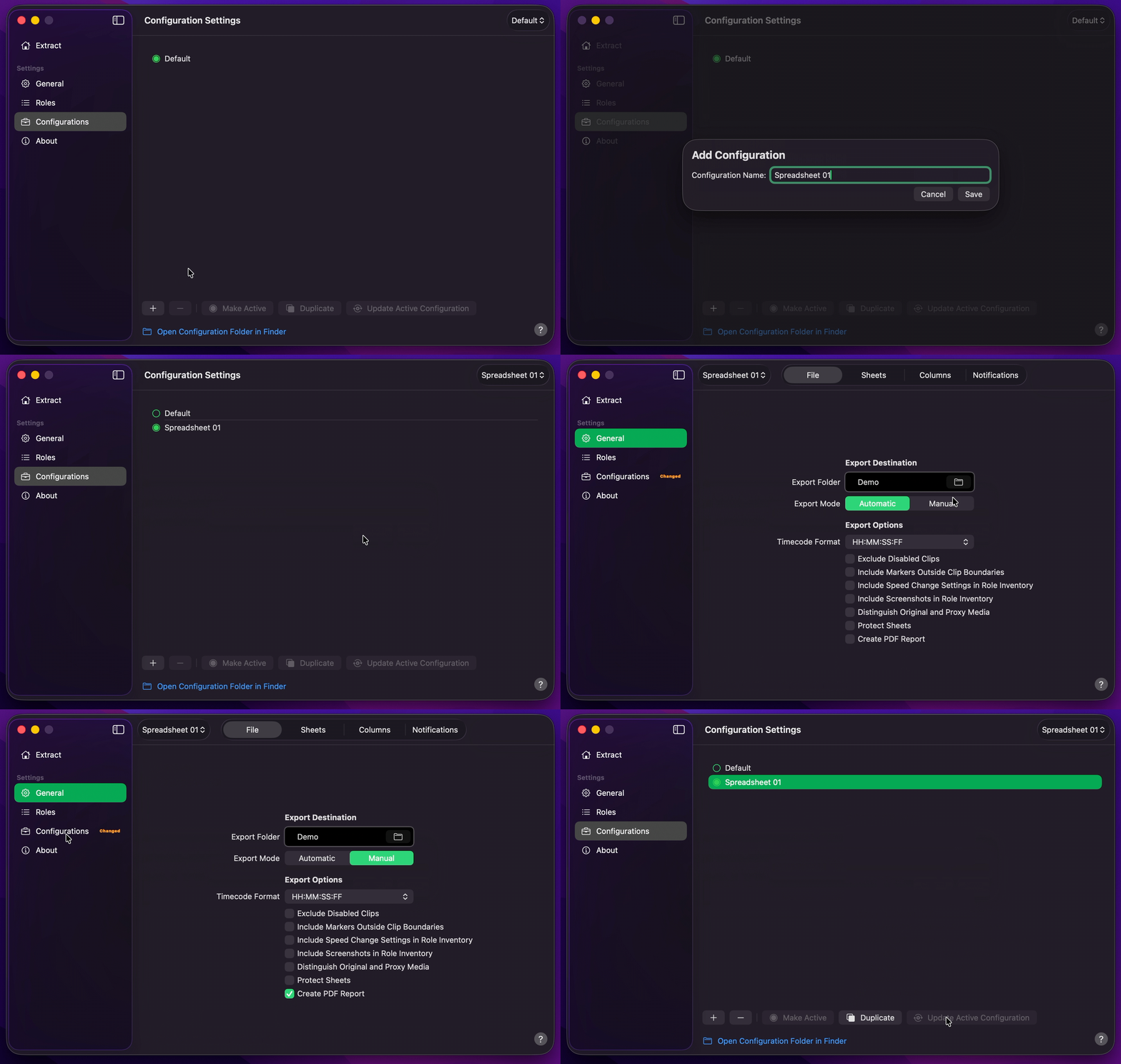
1. [Create Your Configuration](/user-guide/configurations/#add-configuration).
2. Select your desired Export Destination by clicking on the [Folder Icon](/user-guide/general/#export-destination).
3. Select `Automatic` or `Manual` [Export Mode](/user-guide/general/#export-mode). `Automatic` [!badge text="Default"] begins the export as soon as a project is received.
4. Enable [Create PDF Report](/user-guide/general/#create-pdf-report) under Export Options.
5. Optionally, under [Sheets](/user-guide/general/#sheets), enable the report worksheets you need — or turn on `Full Report` to include every optional sheet.
6. Optionally, under [Columns](/user-guide/general/#columns), enable or disable the columns that appear on role inventory sheets.
7. Return to Configurations to [Update Active Configuration](/user-guide/configurations/#update-active-configuration).
!!!info Info
PDF uses the same active Configuration as Excel — there are no separate PDF sheet or column settings. By [!badge text="Default"], only the Excel workbook is exported; enable `Create PDF Report` to write a matching `.pdf` alongside it.
!!!
### Optional Sheet Selection
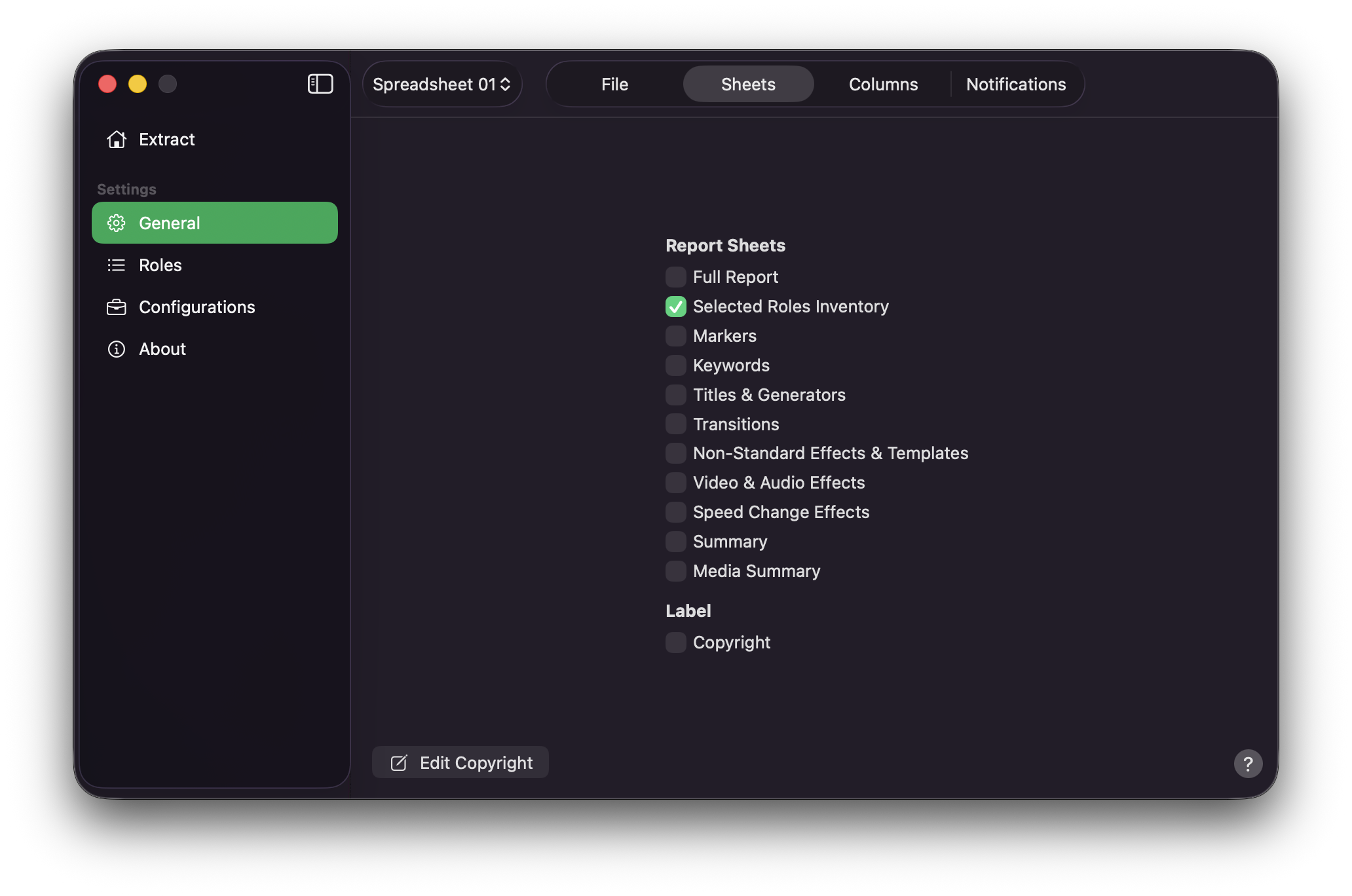
On the [Sheets](/user-guide/general/#sheets) tab, choose which worksheets appear in both the Excel workbook and the PDF report:
- Turn on `Full Report` to enable every optional sheet at once, **or**
- Enable sheets individually — for example `Markers`, `Keywords`, `Titles & Generators`, `Summary`, or `Media Summary`
A summary of enabled sheets is also shown in the status bar on [Extract](/user-guide/extract).
### Optional Column Selection
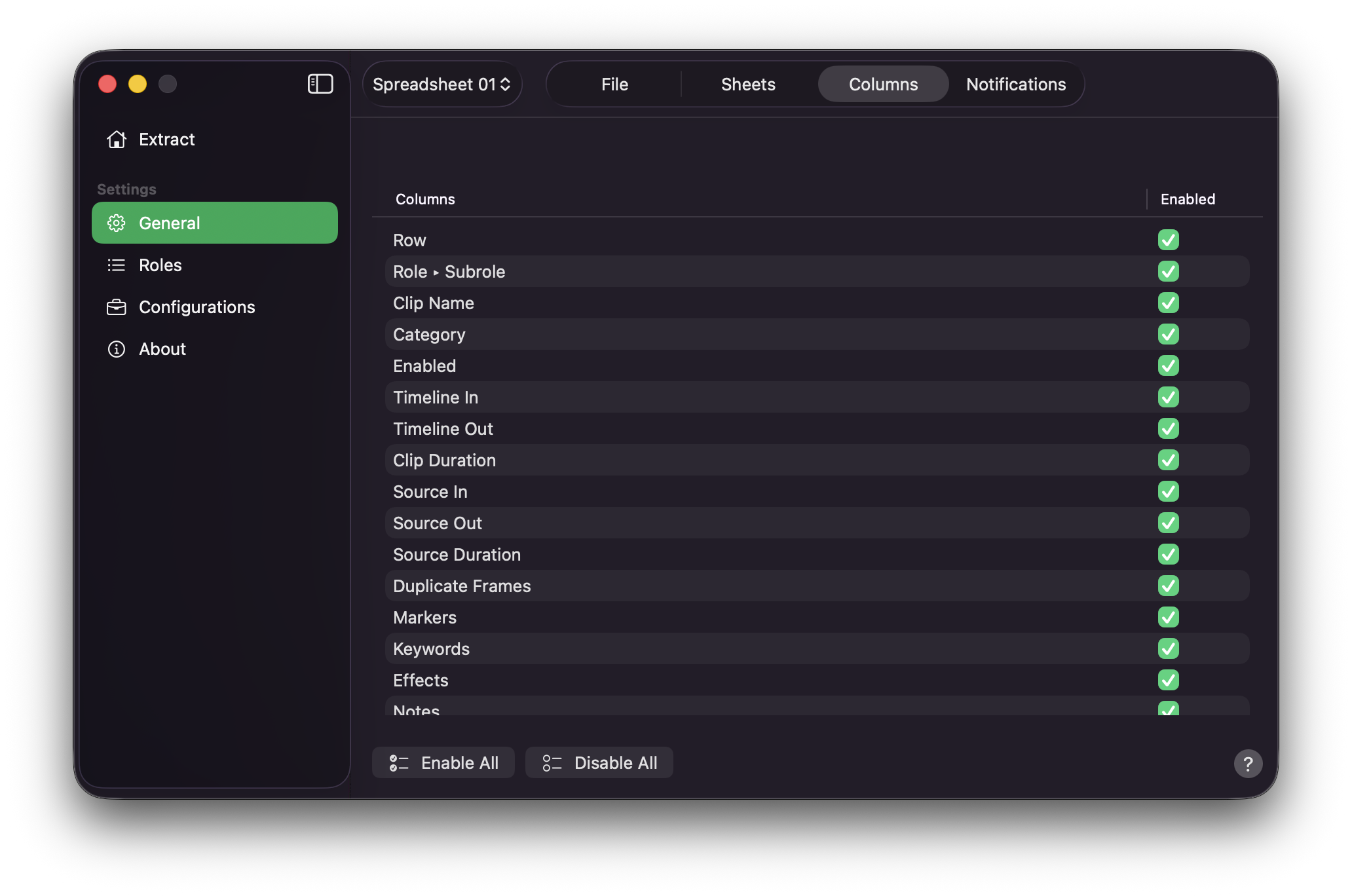
On the [Columns](/user-guide/general/#columns) tab, use the table to turn individual columns on or off. Disabled columns are omitted from both the Excel and PDF export. Press `Enable All` or `Disable All` when you need a quick reset.
## Final Cut Pro to PDF Report
1. Drag and drop your `.fcpxml` or `.fcpxmld` file onto [Extract](/user-guide/extract), or drag a timeline / compound clip from Final Cut Pro.
2. **Production Data** will begin the export.
3. **Production Data** will create an Excel workbook (`.xlsx`) and a PDF report (`.pdf`) in your Export Destination.
!!!info Experimental
PDF export is experimental and optimised for A4 landscape. For the complete dataset and full column control, use the accompanying Excel (`.xlsx`) workbook.
!!!
!!!warning Warning
On large or complex timelines — especially with `Full Report` enabled — the PDF can run to **a thousand pages, and sometimes several thousand or more**. Preview can take a very long time to open, or the file can be impractical to use. Leave `Create PDF Report` off for those jobs.
!!!